How Do I Connect My Framer Blog
Connect steps
- Open
Settings -> Integrations -> Framer. - Copy the provided API key and click
Connect.- If you need the key later, find it in
Menu -> Blog Sync Status.
- If you need the key later, find it in
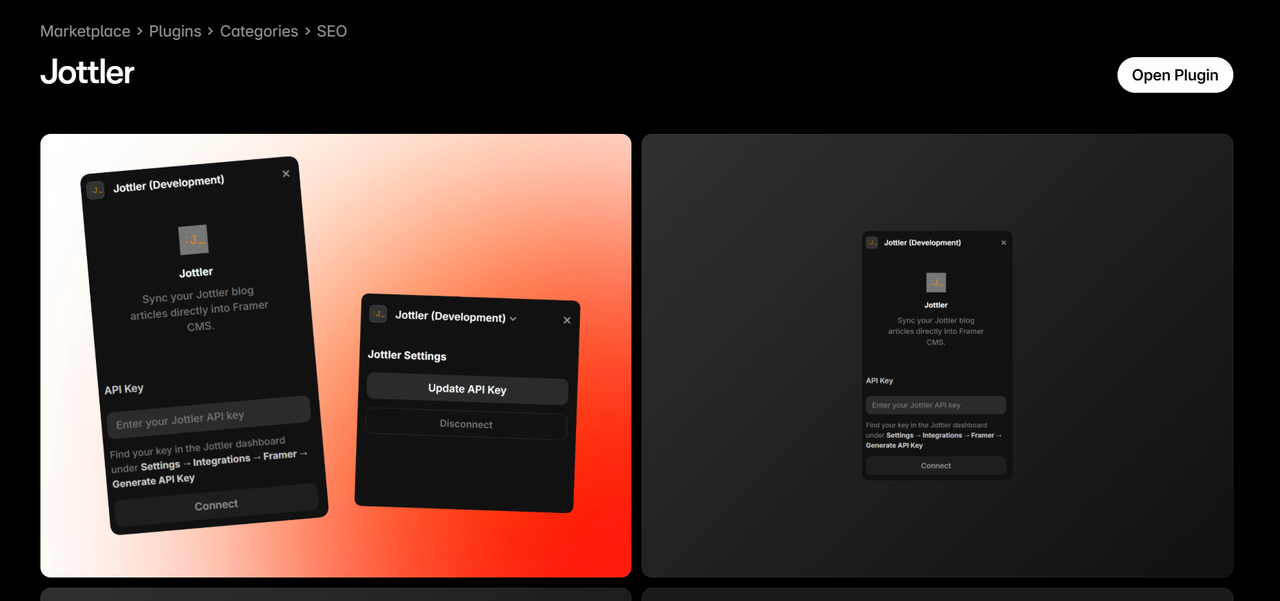
- In Framer, install the Jottler Framer plugin.
- You can install it directly from the Framer marketplace link above.
- Framer will prompt you to create a collection. Give the collection a name.
- Enter the Jottler API key from step 2 and click
Save & Sync. - Create Index and Details pages using the Jottler collection.
- Design both the Details and Index pages.
- On the Details page, select the Content field layer and apply required CMS styles:
- Paragraph
- Headings
- Link
- Blockquote
- Code
- Spacing
- Code Block
- YouTube
- Image
- Table
- To support table rendering, make sure
Tableis enabled in CMS Styles. - Finalize your page design, set page routes, and publish changes.
Can I use the /blog/ route?
If you already have another blog collection using /blog/, use a different route for Jottler content.
This is a Framer platform limitation:
- Plugins can only manage their own collection connections.
- You cannot use two CMS collections on the same route.
Use a separate route such as:
/insights//resources//news//case-studies/
Common structure examples:
/blog/for your main blog/insights/for thought leadership/news/for company updates/resources/for guides and tutorials