Webflow: How to Fix Styles
Jottler does not provide template styles. It outputs clean HTML, and your Webflow CMS template determines how blog posts look.
Why styling can look off
If posts look unstyled, this is usually a Webflow template CSS issue, not a Jottler content issue. This is common and can be fixed by adding custom CSS in your blog post template.
Where to add CSS in Webflow
In Webflow Designer, go to your CMS Collection Pages and open your Blog Posts Template. Add custom CSS there.
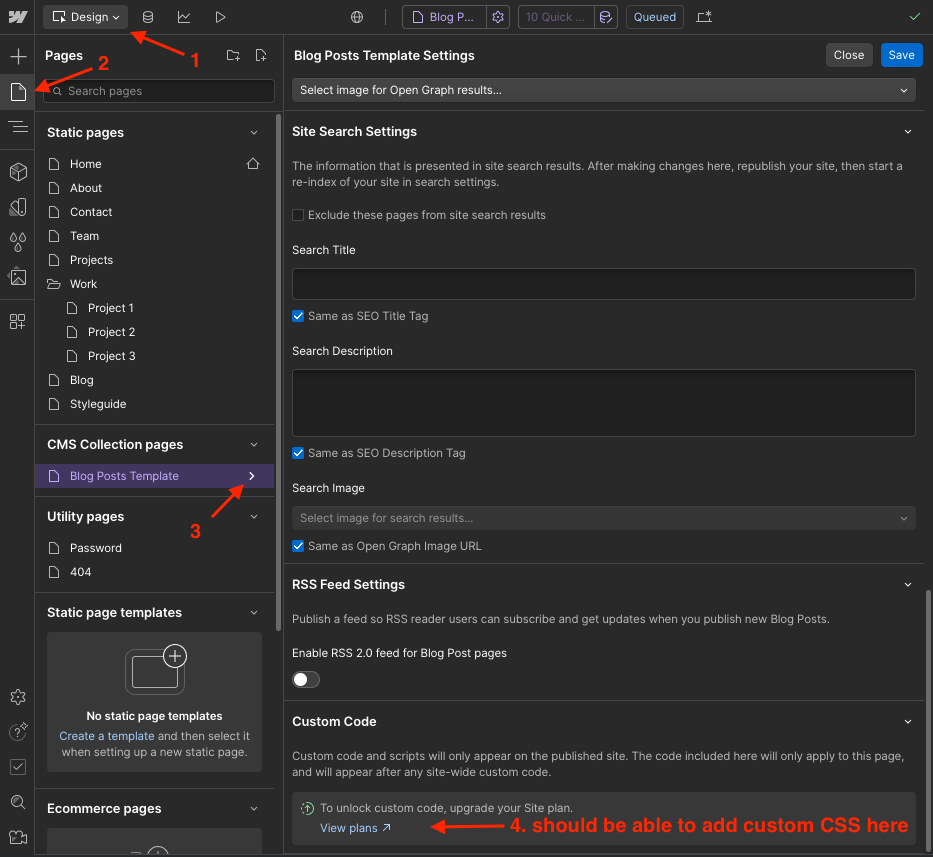
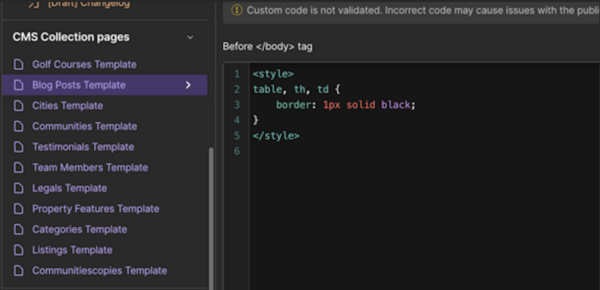
Table styles - Light Theme
<style>
table {
border-collapse: collapse;
text-align: left;
width: 100%;
margin: 20px 0;
}

thead tr {
background-color: #ddd;
}

tr:nth-child(even) {
background-color: #f5f5f5;
}

td,
th {
text-align: left;
padding: 12px;
border: none;
}

table th,
table td {
border: 1px solid #999;
padding: 8px;
color: #202020;
}
</style>
Table styles - Dark Theme
<style>
table {
border-collapse: collapse;
text-align: left;
width: 100%;
margin: 20px 0;
}

thead tr {
background-color: #555;
}

tr:nth-child(even) {
background-color: #333;
}

td,
th {
text-align: left;
padding: 12px;
border: none;
}

table th,
table td {
border: 1px solid #444;
padding: 8px;
color: #fff;
}
</style>
Verification checklist
- Save your CSS in Webflow.
- Publish your Webflow site.
- Refresh a Jottler-synced blog post page.
- Confirm table spacing, border contrast, and readability.